
Table of Contents
How to Add SSO link in GHL #
Hi. In this video, I will show you how you can add your SSO link into the GoHighLevel CRM.
Method: #
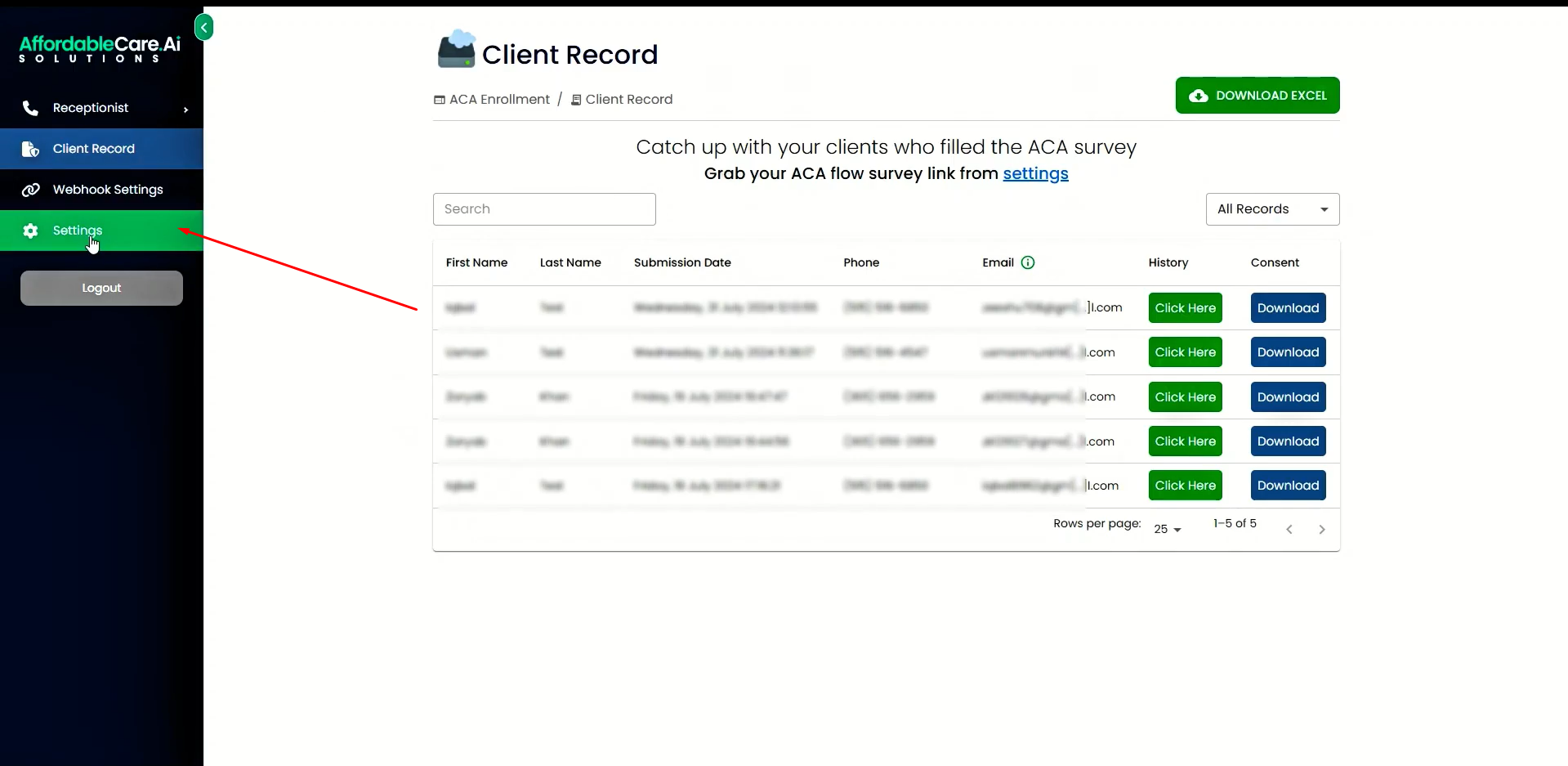
Step 1: Access Agent Portal Settings #
Navigate to the settings of your agent portal. Here, you will find the SSO link.
Step 2: Copy the SSO Link #
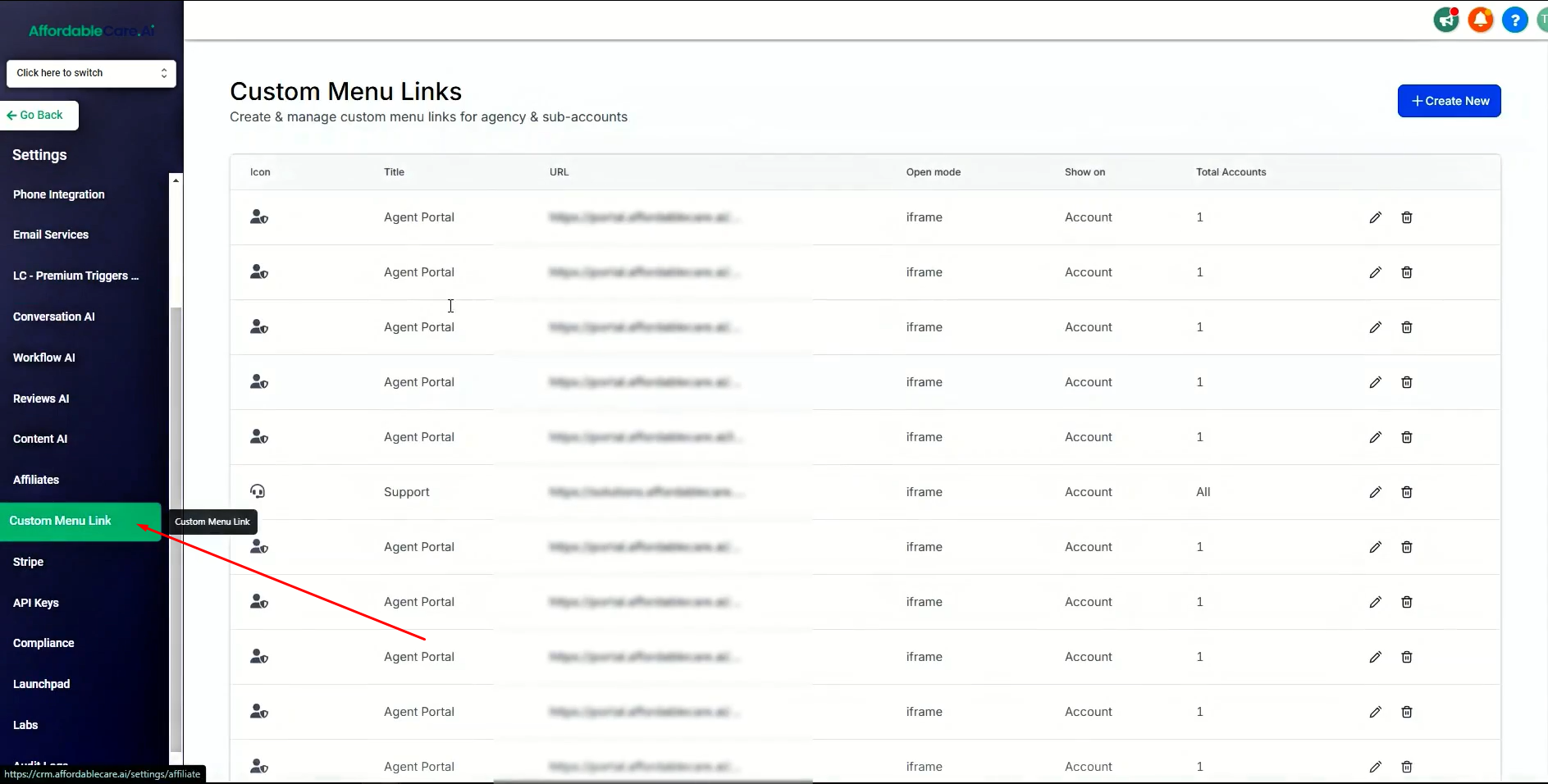
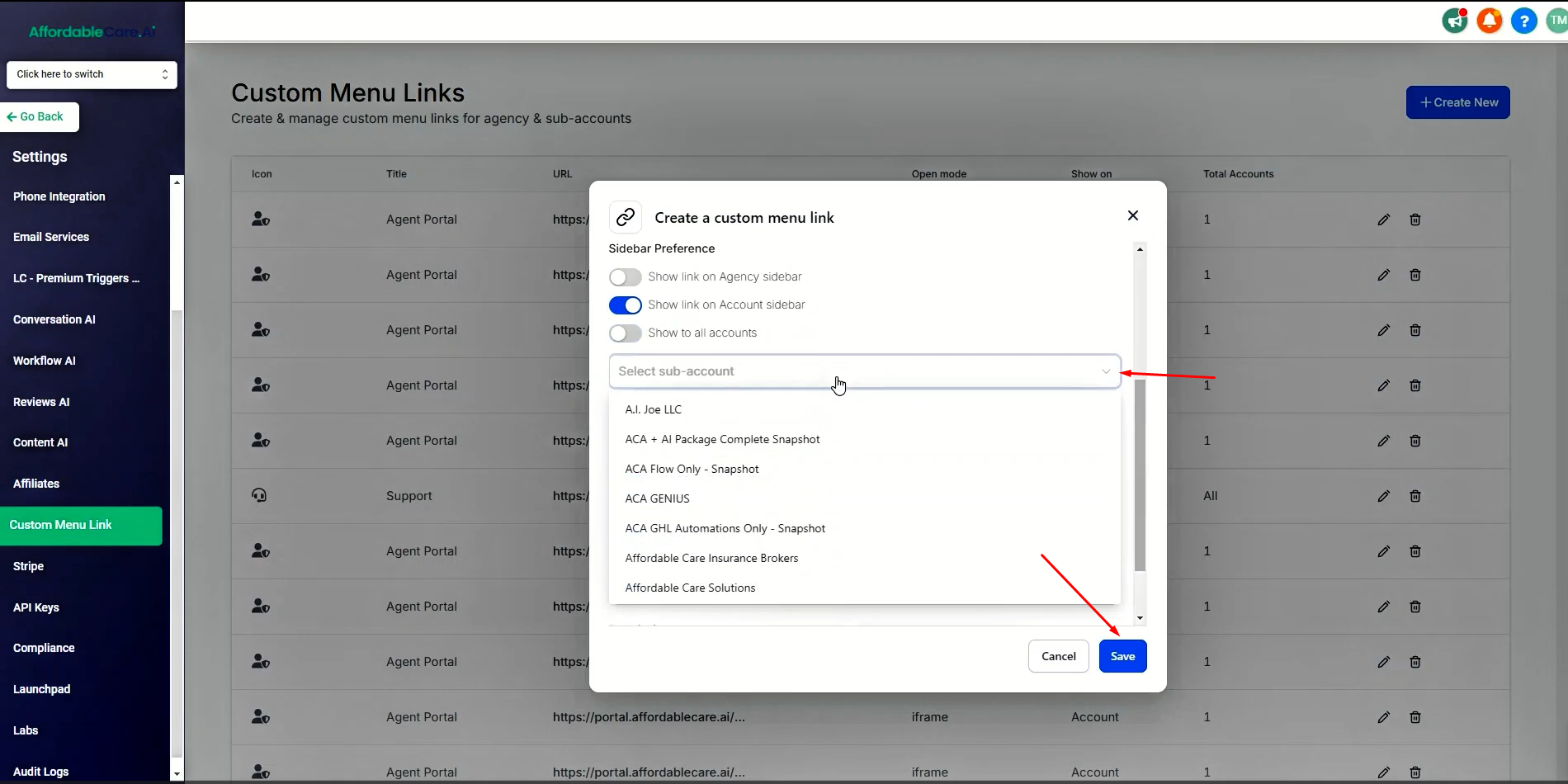
Copy the SSO link, then go to your HighLevel agency settings. In the settings, click on “Custom Menu Link.” Here, you can add the link you copied.
Step 3: Create a New Link #
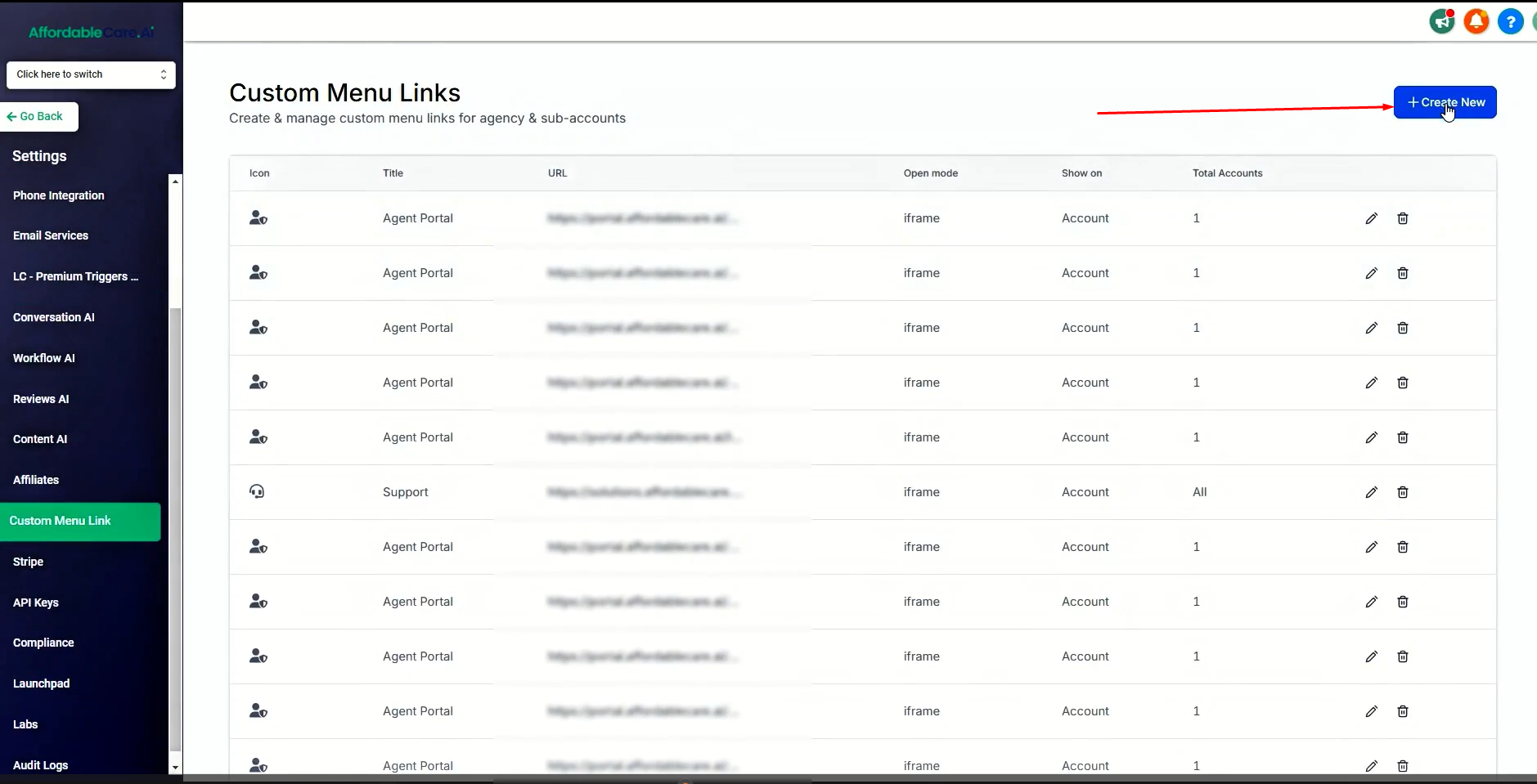
Click on “Create New.”
Step 4: Customize the Link #
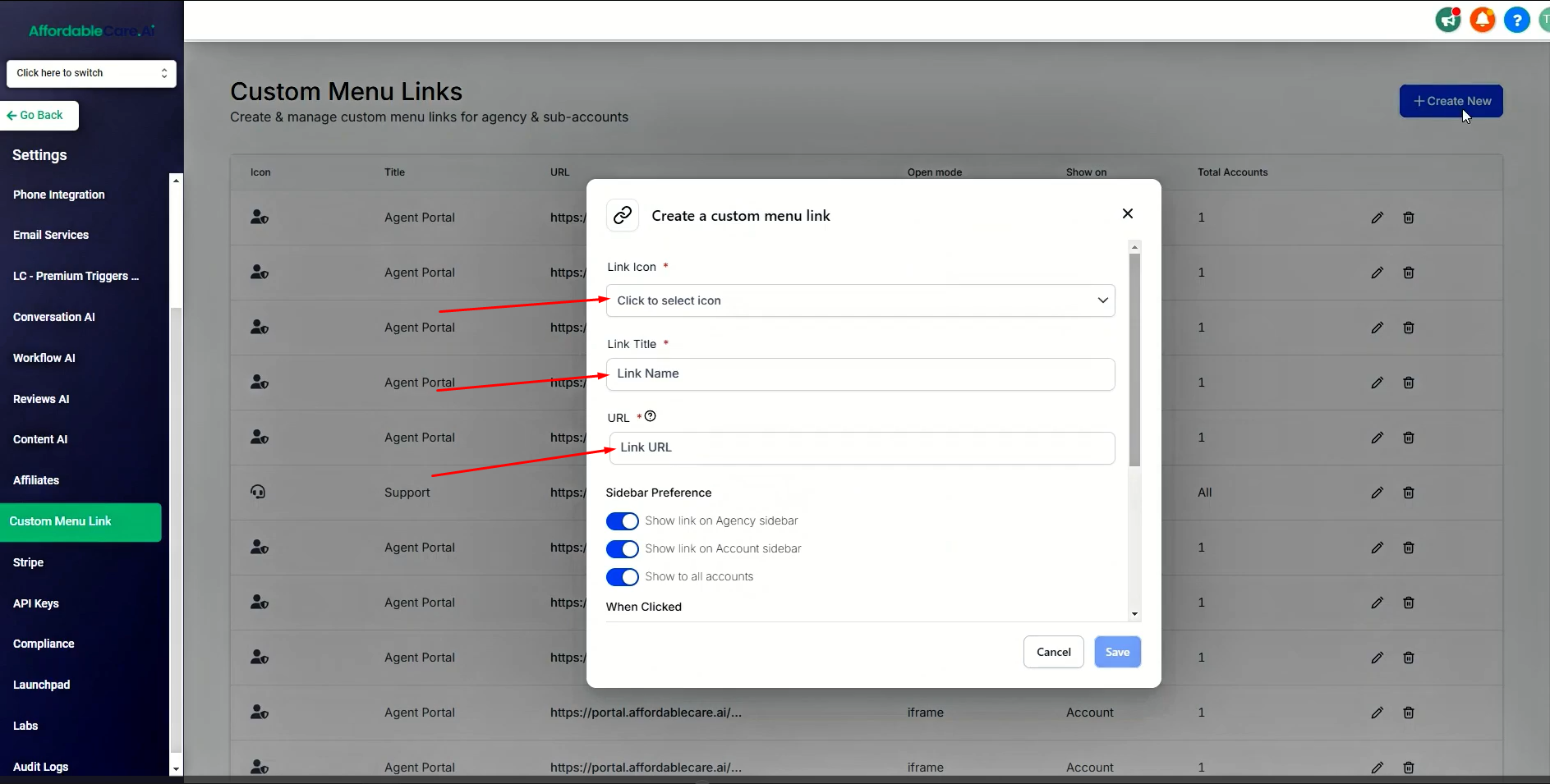
Select the icon you want to add. Enter the link name, such as “Agent Portal.” Paste the URL you copied from your portal and select the subaccount where you want the link to appear.
Step 5: Save the Link #
Select the account and click the “Save” button.
That’s it! This is how you can add the agent portal to GoHighLevel.


